⚙️ Account settings
ℹ️ Note: The screenshots on this page still show the previous propform interface. All features and settings described here apply unchanged — the look was modernised with the new editor.
In the account settings, you can configure default values that apply to all your forms — as well as connections to external services such as onOffice and OpenAI.
Contents
- Name & Email
- onOffice API connection
- Default form styling
- Default form legal notice
- Expiry date for form links
- Form groups
- Statistics & data minimisation
- Integrations — OpenAI, custom services
- Download invoices
- Using your own background images
- Technical notifications
- Consultant/sub-account structures (Impersonate)

- Name / Company name: Appears as the title in your forms’ browser tabs.
- Email: Your login email. If confirmation emails are enabled in the form settings, notifications will be sent to this address — provided no other address is specified in the form settings.
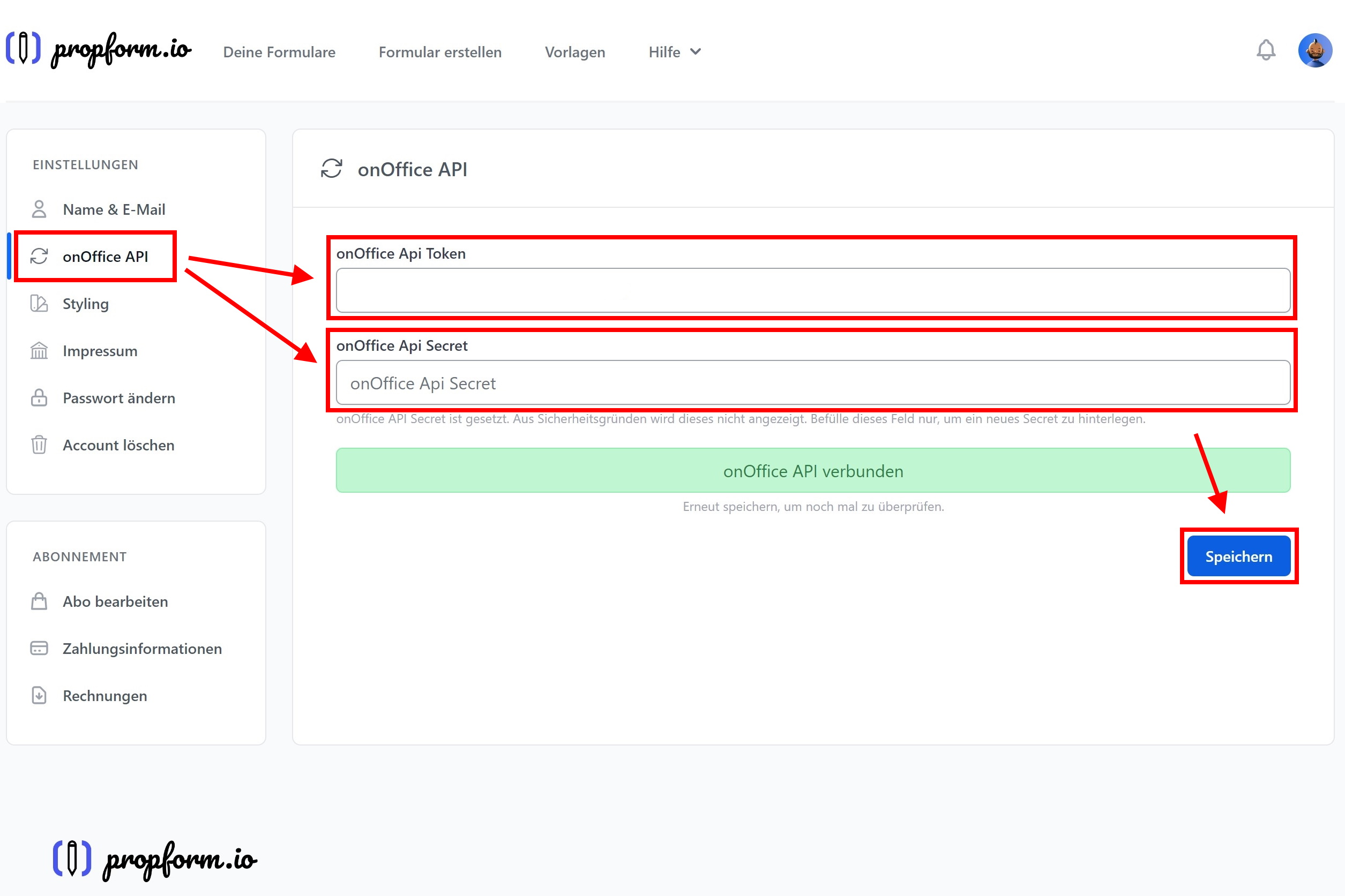
Here you enter the API token and secret for your onOffice API user.
> 💡 If you have activated propform.io via the onOffice Marketplace, the connection will be established automatically — you do not need to enter anything here.
📖 Detailed instructions:

These settings apply to all forms where “Use default styling” is enabled. You can override them in each individual form.
- Logo: Displayed above your forms. Via “Choose image” you upload a logo directly into your media library or pick an existing one — alternatively you can still enter an external URL.
- Favicon: Small logo in the browser tab — also via “Choose image” or URL.
- Background colour: Screen background for your forms.
- Accent colour: Buttons, borders, focus rings.
- Font: Google Fonts selection. For data protection reasons, the fonts are hosted on our servers, not on Google’s.
> 💡 If your preferred font is missing, get in touch — we’ll add it.
Standard form legal notice

Appears below your forms, provided that “Use standard legal notice” is enabled in the form settings.
- Homepage URL + Privacy policy URL + Legal notice URL (links to your main page)
- Legal notice lines 1–5: Free text for company name and contact details
Expiry date for form links
To ensure form links are not valid indefinitely, you can specify an expiry date in the form settings. It is appended to the form URL as a URL parameter.

Static expiry date
You enter a specific date (format YYYY-MM-DD HH:MM:SS or YYYY-MM-DD) and append it as a URL parameter to your form URL.
Dynamic date via onOffice formula
More practical for most use cases: you use an onOffice formula field that dynamically calculates the desired expiry date. When sending a form link from onOffice (e.g. via email), the current expiry date is automatically inserted.
Typical use case: A form link in an email should be valid for 14 days from the date of sending. To do this, create a date field in onOffice using the formula _calculate(DATEADD(TODAY();14;"d")) and use the macro for your email dispatch.
Form groups
You can define as many form groups as you like and assign a group to a form in the form settings.
Why? You can then create a copy link for an entire form group — and use it to share or copy multiple forms at once between different propform accounts. Useful for consultancy firms rolling out their standard set of forms to many clients.
Statistics & Data Minimisation
In this section, you can completely disable propform.io from storing form views and submissions with content in the database.
- Store form submissions in encrypted form: On by default. Submissions remain viewable in your propform account (e.g. for reconstruction). If off, submissions are only counted, but content is not stored.
- Store IP addresses for form views: On by default. If off, the IP is not recorded.
> 🔒 If both options are off, counters will still be incremented, but no content or IPs will be stored in the propform database. Data is routed exclusively to onOffice. More on this: Privacy Policy.
Integrations
OpenAI (for ChatGPT fields & AI voice input)
Enter your OpenAI Platform API key (from platform.openai.com). This will enable the “ChatGPT text generation” and “AI voice input” functions in the form settings.
> 💸 You pay the costs of API usage directly to OpenAI. Pay-per-use, very affordable per request.
Download invoices
Account settings → bottom left “Invoices” → list of all previous invoices with download links.
Download invoice PDF
Invoices are generated via our payment provider Paddle — propform does not store the invoice PDFs itself. Workflow:
- Click on the download link for the desired invoice → opens the Paddle details page
- First-time use: at the top, click “Add Address and VAT Number” → enter company address + VAT number → save (Paddle will remember the address for future invoices)
- Optional: tick “Business Purchase”
- Browser Print → select “Save as PDF” as the print destination → finished invoice PDF with your company details
> ⚠️ Important: Paddle does not attach a PDF to the reminder email — you must actively click the link and print manually. This is a Paddle feature that we cannot influence.
Resend / Resend email
If the invoice reminder has not arrived, there is a “Resend” button for each invoice — this resends the email with the download link.
Using your own background images
You set background images in the form settings → “Design” section → background image. The easiest way is the media library:
Upload directly into propform (recommended)
Next to the background image field — as next to every image field in propform — there is a “Choose image” button. It opens your account's media library:
- Click “Choose image” → the picker dialog opens
- Upload your own image or select one you already uploaded to the library
- Done — no external hosting needed
Alternative: external URL
External image URLs still work — you can enter them directly into the background image field. Two possible sources:
Unsplash (for royalty-free images): Select an image on unsplash.com → right-click → “Copy image address” → paste the URL into the background image field.
⚠️ Note regarding Plus images: Images with the “Plus” label are subject to a fee (Unsplash+ subscription) — use only standard Unsplash images.
onOffice file management (CK-Finder): The former workaround via the onOffice file management still works, but the media library makes it unnecessary. If your images are stored there anyway: In onOffice, compose a new email → insert image → “Browse server” → upload/select the image → copy the image link from the URL bar and paste it into propform. The images are then stored under mcms.onoffice.de/... and are publicly accessible.
Technical notifications
propform actively notifies you when something goes wrong during the transfer to onOffice — for example when an onOffice field mapped in your form no longer exists, a PDF template was renamed or is broken, a link between address and property could not be created, or an email could not be delivered. The notices appear as a bell at the top of the app and, in important cases, additionally as an email — always naming the affected form and giving a concrete recommendation. Where possible, propform repairs the problem automatically during the transfer (e.g. an unknown field is left out so that the rest of the record still arrives) and tells you what to fix permanently.
Under Settings → Notifications you define who receives these technical emails:
- Up to three additional recipients — e.g. your external consultant or tech-savvy colleagues. Each entry is a plain email address; a propform account is not required.
- Checkbox “also send to my own email address” — active by default. To be safe, you always receive the notices yourself as long as no additional recipient is entered.
This setting only affects the technical onOffice notices. Emails about your account or billing are still sent exclusively to you, and the notification bell in the app remains unchanged.
Tip for consultants: If you manage client accounts via Impersonate, you can add yourself there as an additional recipient — please coordinate this with your client. That way you learn about configuration problems without having to log in regularly.
Consultant/Sub-Account Structures (Impersonate)
If you manage multiple client accounts as a consultant or reseller, you will find the “Impersonate Account” option in your account settings, along with a list of your clients.
Workflow
- Account settings → “Impersonate Account” → List of assigned client accounts
- Click on the two arrows → you are now in the client account (without needing to know their password)
- “Leave impersonation” at the top → back to the consultant account
You can do everything in the client account that the client themselves could do: create forms, copy them (see form groups above), change settings, view statistics.
Setting up new client accounts
The assignment “this consultant may impersonate this client” is currently entered manually by propform in the database. If new clients are added, please drop us a quick line at hello@propform.io.
Cross-Admin Impersonation
If you have multiple admin accounts within an organisation (e.g. two managing directors), they can also impersonate each other. We can configure this on request.
Sub-accounts with their own subdomain
Each sub-account has its own subdomain (<name>.propform.io) available — or a custom domain via CNAME. More information on request at hello@propform.io.
> 💡 API user limitation: An onOffice API user token can only be stored in one propform account (to prevent free account abuse). If multiple sub-accounts are to use the same API user, please contact us — we can set this up in the backend.