📨 Email in propform
ℹ️ Note: The screenshots on this page still show the previous propform interface. All features and settings described here apply unchanged — the look was modernised with the new editor.
propform can send three different emails simultaneously after a form is submitted — these can be enabled independently of one another:
- Confirmation email from propform to you (e.g. “New enquiry” notification)
- Email via onOffice API #1 (e.g. reply to the enquirer)
- Email via onOffice API #2 (e.g. internal info email to team leader)
Content
- Confirmation email from propform
- Email via onOffice API
- Recipient logic (address match)
- Macro expansion in recipient, subject, body
- HTML in the email body
- Multiple recipients via CC/BCC
- Address macro resolution “alternative”
- Newsletter double opt-in via
_NewsletterDOILink - Attachments
- Use onOffice email templates
Confirmation email from propform
Standard notification sent to you when someone has submitted the form. Contains all input values as a formatted overview.
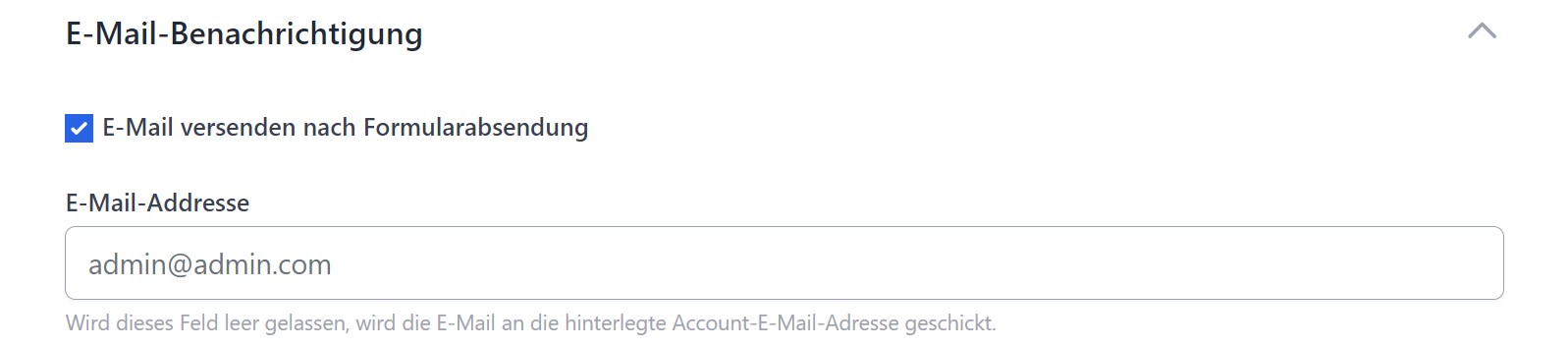
- Send email after form submission: Toggle to activate
- Email address: Leave blank for your account email or enter another one
Email via onOffice API
The more powerful option: propform instructs onOffice to send an email — from the email address of the onOffice user assigned to your API user (not from any random user), using your onOffice email templates, automatically placed in the correct outbox.
> 🔧 Prerequisite: The API user must be assigned to an email inbox in onOffice, and the corresponding email address must be stored in your propform account. Instructions: Assign API user to an inbox + store email in propform.
You can configure two separate onOffice emails per form — typical use cases:
- Email 1: Reply to the enquirer
- Email 2: Internal information email to team leaders, managers or an external mailing list
Configurable per email
- Recipient (email address or user field for the address/property)
- CC (carbon copy)
- BCC (blind carbon copy)
- Subject + Body (macros enabled)
- onOffice email template (optional)
- Attachments: PDF property summaries, PDF letters, uploaded files
- Document attributes of the attachments
Recipient logic (address match)
When sending an email via onOffice, the API requires an address ID, not just an email address. propform therefore searches onOffice for an address with this email address.
> ⚠️ Important logic improvement over standard onOffice: If the email address exists in a record only as a secondary or tertiary address (not as the primary one), standard onOffice would send the email to the primary address in the record — which is not the desired behaviour. > > propform therefore first checks whether the desired email actually exists as a primary address. If not, a new address record is automatically created with this email. This ensures that emails reach the right person.
Recipient as a user field
Instead of a pre-defined email address, you can select a user field from the loaded address or property as the recipient — e.g. “Team Leader” or “In-house Manager”. Your own user fields, which you have created yourself in the onOffice administration, are also available.
Macro resolution in recipient, subject, body
onOffice macros are active in recipient, CC, BCC, subject and body. Practical examples:
Recipient with fallback
_ifEmpty(_Sonstige1;"fallback@unternehmen.de";"_Sonstige1")
→ If the _Sonstige1 field in the address is empty, the email goes to fallback@unternehmen.de. Otherwise, it goes to the email address from _Sonstige1.
Dynamic recipient via single-select
_calculate(IF([ind_2418_Feld_adressen51]="ind_Schl_4605";"team-a@unternehmen.de";"team-b@unternehmen.de"))
→ The email recipient depends on the value selected in an address selection field.
Body with search profile summary
Hallo _Vorname _Name,

danke für deine Suchanfrage.

Dein Suchprofil:
_pfGetSearchCriteriaInformation

Wir melden uns!
→ _pfGetSearchCriteriaInformation displays the search criteria just created in tabular form.
📖 Complete macro overview: Macros — propform & onOffice
HTML in the email body
If the email is sent as an HTML email (default for emails via the onOffice API), you can use HTML tags in the body:
Hallo <strong>_Vorname _Name</strong>,

vielen Dank für deine Anfrage zu <a href="_getEstateLink">_objektart in _ort</a>.

Wir melden uns innerhalb von 24 Stunden.
The usual tags are permitted: <strong>, <em>, <a href="...">, <br>, <ul>/<li>, <p>, <h2>–<h4>. Style attributes also work.
> ⚠️ Important for buttons: If you use styled buttons with <a style="...">...</a>, the CSS properties must be directly within the style attribute — not as classes. Some email programmes (e.g. Gmail) ignore external stylesheets and will otherwise only display the underlined link instead of the button.
Multiple recipients via CC/BCC
The recipient field accepts only one address, whereas CC and BCC accept multiple recipients separated by commas — each of which can also be combined with macro resolution.
Example:
CC: _Sonstige1, buchhaltung@unternehmen.de, _Email(geschaeftlich,2)
→ The email is also sent to the email address in the ‘Other1’ field, to the fixed accounts department email address, and to the second business email address in the record.
Use cases:
- Notify customer and accounts department simultaneously
- Dynamic team distribution list via address field
- Central archive address via BCC
“Alternative” address macro resolution (form address instead of recipient address)
Problem: If you send an onOffice email to an internal employee (e.g. accounting) and want to access the data of the form filler in the body (_Vorname, _Name, _Email etc.), onOffice by default returns the recipient’s data — i.e. Accounting. Not what you want.
Solution: In the propform email configuration → Address Macro Resolution, switch from “normal” to “alternative”. This ensures that _Vorname, _Name etc. refer to the form filler’s address, not the email recipient.
> 💡 Rule of thumb: If the email is going to someone other than the enquirer themselves, almost always use “alternative”.
Bonus tip: Clickable record link in internal email
So that the colleague in accounts can jump straight to the record:
<a href="_getAddressLink">Adresse in onOffice öffnen</a>
_getAddressLink is a propform macro for the deep link to the address record. Only works for logged-in onOffice users.
## Newsletter double opt-in via _NewsletterDOILink
onOffice has a standard field Newsletter with the following values:
0= no1= yes3= DOI pending (user has registered but not yet confirmed)
propform-DOI workflow:
- Registration form with email field + hidden
Newsletterfield (default value3= DOI pending) + duplicate address check on email - Send confirmation email via onOffice template containing the macro
_NewsletterDOILink - User clicks the link → onOffice automatically sets the newsletter field to
1(= confirmed)
Advantage: no separate DOI workflow required — onOffice handles the confirmation. propform only provides the registration form and the initial email.
> 📌 Complete newsletter campaign setup with process manager and automatic weekly dispatch: We are happy to provide a consultation walkthrough on request. Concept source: HS Immobilienberatung (Christian Sporbert).
Attachments
All three email options can include attachments. Sources:
- Uploaded files from the form
- PDF property details from onOffice (with choice of template)
- PDF letters from onOffice (with choice of template)
- Documents by attribute (filterable)
> 📎 Attachment limit for the propform confirmation email: Uploaded files are only sent as attachments if their combined size is less than 25 MB (standard email limit). Larger files can then only be found in the relevant onOffice record — but the email will still be delivered without an attachment.
> 📎 For onOffice API emails, the onOffice limit applies — if the attachments are too large, onOffice will not send the email.
Using onOffice email templates
Instead of entering the subject and body directly in propform, you can select an onOffice email template. Advantage: centralised template management in onOffice, easier to maintain, same template can be used for multiple forms.
Setup
- Create an email template in onOffice (Edit → Templates → Email Templates)
- Set the record permissions for the template AND the template folder to the propform API user — see My form isn’t writing any data point 6
- In propform → Email configuration → select template from the dropdown
- The subject and body will then be greyed out (they come from the template)
Important limitation: Attachments from the template
> ⚠️ If the onOffice template contains attachments, these are not automatically included in the propform API email. Attachments must be defined separately in propform (PDF exposé, uploaded files, documents by attribute). This is an API limitation.
Common error: Template not in the selection
If the template does not appear in the dropdown in propform:
- Have you checked the record permissions for the template itself? ✓
- Have you checked the data record permissions for the folder containing the template? (often forgotten!) ✓
- Does the API user have “Word/Email/PDF Templates → Read Templates → All” selected? ✓
Special case: Marketplace API user — cannot use own signature
If propform is connected via the onOffice Marketplace, emails are sent via a Marketplace API user. You cannot assign a custom email signature to this user in onOffice — the standard _Signatur macro therefore does not return a meaningful value.
Workaround:
In the propform email (or the onOffice email template that calls propform), set the _Signatur(inaktiv) macro — this explicitly suppresses the auto-signature — and instead hardcode the desired sender information as plain text in the email body:
Mit freundlichen Grüßen
Max Mustermann
Mustermakler GmbH
0151 / 12 34 56 78

_Signatur(inaktiv)
> 💡 The same workaround also works if, for a classic API user, you deliberately want to use a custom signature per form email rather than the user signature.
Special case: onOffice Process Manager emails (template type “Contact Mailing”)
If your email is sent via the onOffice Process Manager using the template category “Contact Mailing” (e.g. automated newsletter/status update campaigns), a special macro rule applies:
- Standard macros such as
_Vorname/_Nameresolve to the recipient’s address — not to the address stored in the process record - Workaround: use the prefix variant for the process-related address →
_kontakt_vorname/_kontakt_nameetc.
Prerequisites:
- The template category is set to “Contact Mailing Template” (wrench icon on the email template)
- “Assign process-related address” is enabled in the process
> 💡 When do I need this? Only for Process Manager routes with the special mailing type. For normal propform emails (even if they go via the onOffice API), the “alternative” mode from the section above is sufficient.