Pre-filling & loading records
ℹ️ Note: The screenshots on this page still show the previous propform interface. All features and settings described here apply unchanged — the look was modernised with the new editor.
Fields can be pre-filled in several ways — and existing onOffice records can be loaded into your form so you can edit them rather than creating new ones.
Contents
- Order & priority
- Default value
- URL parameters
- Load record with UUID
- Forced values
- Automatically load linked records
- Filter — which records can be loaded?
Order & Priority
If a field is pre-filled in multiple ways, the following order applies — from weakest to strongest:
> Default-Wert ← overwritten by ← Wert aus onOffice-Datensatz ← overwritten by ← URL-Parameter ← overwritten by ← Erzwungener Wert
This means: Forced values always take precedence. URL parameters override the loaded onOffice value. The onOffice value overrides the default. If all sources are empty, the field is also empty.
Default value
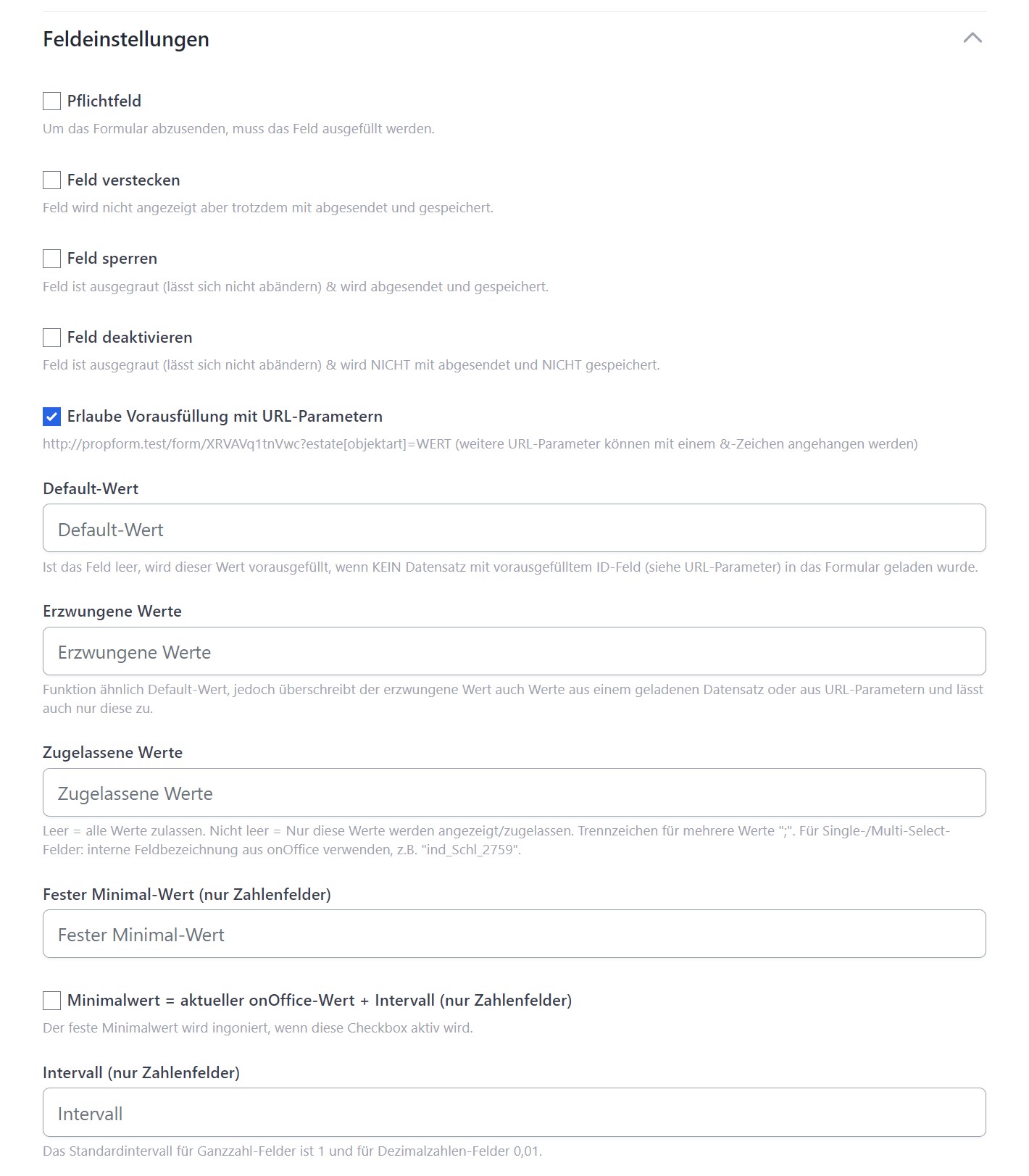
In the field settings, you can specify a default value. If the form is called up empty (no record loaded, no URL parameter), this value appears pre-filled.

Examples:
- Property field “Property type” → Default
haus - Multi-select field → separate multiple values with
;, e.g.interessent;eigentuemer
> 🔑 For single/multiselect fields, you must use the internal key names from the onOffice administration — e.g. ind_Schl_2759 instead of “House”.
URL parameters
You can use URL parameters in the form URL to populate fields when the form is called up. Prerequisite: “Allow pre-filling with URL parameters” must be enabled in the field settings (default: on).
URL parameters are appended to the URL with ?, and subsequent ones with &:
https://propform.io/form/dein-slug?estate[objektart]=haus&estate[objekttyp]=einfamilienhaus

> 💡 You can find the specific URL parameter for each field in the field settings under the “Allow pre-filling with URL parameters” tick box as a small note.
Schema
modul[feldname]=wert
| Module | URL parameter prefix |
|---|---|
| Property | estate |
| Address | address |
| Activity | agentsLog |
| Task | task |
| Appointment | calendar |
| Search criterion | searchcriteria |
| Project | project |
Multi-select with multiple values
For multi-select fields, you need to use square brackets and specify each value individually:
?address[ArtDaten][]=Eigentuemer&address[ArtDaten][]=Investor
Range search criteria (from/to)
For search criteria fields with from/to values, use double underscores:
?searchcriteria[wohnflaeche__von]=50&searchcriteria[wohnflaeche__bis]=80
Boolean fields (checkboxes)
Boolean fields accept only 1 (for ‘active’/‘true’) and 0 (for ‘inactive’/‘false’) via URL parameters:
?address[opt_in]=1
?address[newsletter_einwilligung]=1
> ⚠️ Values such as ?feld=true, ?feld=WAHR, ?feld=ja are not recognised as truth values — the field will then remain empty. Always use the integer 1.
If you want to edit an existing onOffice record, load it using its UUID (universal unique identifier) as a URL parameter. UUIDs cannot be guessed — nobody can open a different record by manipulating the URL.
https://propform.io/form/dein-slug?address[ID]=f4059f75-8155-4869-b244-d036c3babfd1

Prerequisites
- In onOffice Administration: Enable fields
uuidin the Addresses module ANDuuidin the Properties module - In Form Settings: Tick the box for “Pre-fill with UUIDs”
URL parameters per module (note that these are case-sensitive!)
| Module | URL parameter |
|---|---|
| Address | address[ID] (uppercase I, uppercase D) |
| Property | estate[Id] (uppercase I, lowercase d) |
UUID via email macro
If you send the form link via onOffice email, the UUIDs are accessible via the following macros:
_Uuidaddress    →  UUID der verknüpften Adresse
_Uuidestate     →  UUID der verknüpften Immobilie
For example, an edit link in an onOffice email template:
https://propform.io/form/dein-slug?address[ID]=_Uuidaddress&estate[Id]=_Uuidestate
UUID via link field in the onOffice form
You can also create a link field in your onOffice address or property form and enter the URL using a formula:
="https://propform.io/form/dein-slug?address[ID]="&[uuid]
or for properties:
="https://propform.io/form/dein-slug?estate[Id]="&[uuid]
> 💡 In the form settings under “Edit existing records”, propform displays the complete links and formulas ready for copying.
Loading a language version of a property (Multilanguage module)
If your onOffice account uses the “Multilingual properties” add-on module, you can additionally append the estatelanguage parameter to load and edit a specific language version of the property:
https://propform.io/form/dein-slug?estate[Id]=_Uuidestate&estatelanguage=ENG
The language-dependent free texts (property title, property description, location etc.) are then pre-filled from the selected language version — and written back there on submission. Always use the UUID of the main language. All details: URL parameters → Language version of a property.
Forced values
In the field settings, you can set a forced value. This:
- Is pre-filled when the form is opened
- Overrides loaded onOffice values
- Overrides URL parameters
- Allows submission only if the field value matches this value exactly
Separate multiple values with ;.
> 💡 Example: You are building a “one-click newsletter sign-up” form. Set a forced value of aktiv for the newsletter field and combine this with “Hide field” + “Auto-submit”. The visitor clicks the link once, the form submits immediately and the newsletter status is set to aktiv.
Automatically load linked records
When you load a property via UUID, propform can automatically load the linked address — e.g. the owner.
In the form settings, you’ll find a selection for this under “Edit existing records”:
| Selection | Meaning |
|---|---|
| Do not load linked address | Default |
| Load owner | Address with “owner” link |
| Owner with contact type X | Owner address, filtered by contact type multi-select key |
| Conversely, you can also load the linked property alongside a loaded address: |
| Selection | Meaning |
|---|---|
| First / Second / Third property | First/second/third “Owned” link |
| First / Second / Third purchased property | “Bought” link |
| First / Second / Third rented property | “Rented” link |
| First / Second / Third tipped property | “Tipped” link |
> ⚠️ Only works if explicitly only one side (address OR property) is loaded via UUID. If you load both via UUID, the explicitly specified UUIDs take precedence.
Filters — which records can be loaded?
To ensure that not just any record can be edited using the form, you can apply restrictions in the form settings under “Filter settings”:
- Address filter: Only addresses that fall within the selected onOffice filter can be loaded
- Property filter: Similarly for properties
The filters must first be created in your onOffice administration (filters are a standard onOffice feature).
> 💡 Use case: You are creating a tenant self-disclosure form that should only be usable for active rental listings. Create a filter called “Active rental listings” in onOffice and select it in the form settings — this ensures that inactive properties cannot be loaded via the form link, even if someone knows the UUID.
📖 More on filter protection: Filters per form.
Edge cases & security notes
URL parameters in the iFrame setup
If you embed the form into your website via an iFrame, the ?param=value URL parameters must be included in the iFrame URL, not in the parent website URL:
<!-- ✓ Richtig: Parameter im iframe-src -->
<iframe src="https://formular.deine-domain.de/dein-formular?address[ID]=_Uuidaddress&estate[Id]=_Uuidestate"></iframe>

<!-- ✗ Falsch: Parameter in Eltern-URL kommen NICHT im iFrame an -->
<iframe src="https://formular.deine-domain.de/dein-formular"></iframe>
If you have a dynamic iFrame setup (where parameters change depending on the data record), your website logic must dynamically generate the src attributes of the iFrame.
Security considerations regarding pre-filled URL values
URL parameters are visible in plain text — users can manipulate them at will before submitting the form:
?searchcriteria[kaufpreis_bis]=500000can be changed to?searchcriteria[kaufpreis_bis]=999999999?address[Sonstige1]=info@firma.decan be changed to any other email address
Consequences:
- Do not rely on URL values for critical fields (e.g. pricing, commission rates)
- For such values → use forced values (see above) — these override URL parameters and can only be configured in one place
- For manipulated UUIDs → use filter protection (see above) to prevent users from accessing other records
“Link is deleted by email providers”
When long URL parameters (e.g. complex pre-filled links) are sent in emails, some email providers may flag links as suspicious and, for example, automatically remove or redirect them (Microsoft Defender, Google Safe Browsing).
Solution options:
- Use your own custom domain for email sending → better reputation
- Send complex links via an onOffice template, not directly in propform emails
- Maintain SPF/DKIM/DMARC properly