All posts
Sample form: Tender process
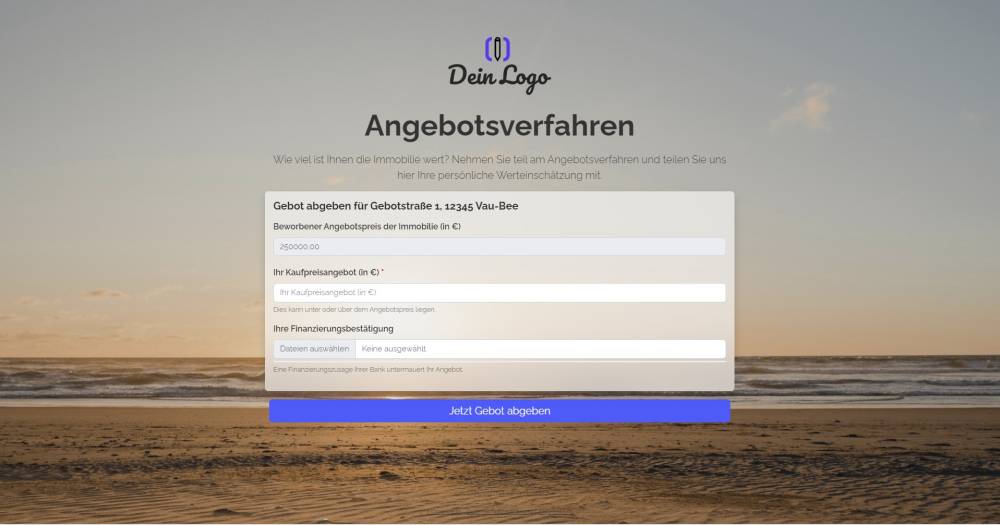
This form can be used to receive purchase offers from prospective buyers for a property.
Explanation
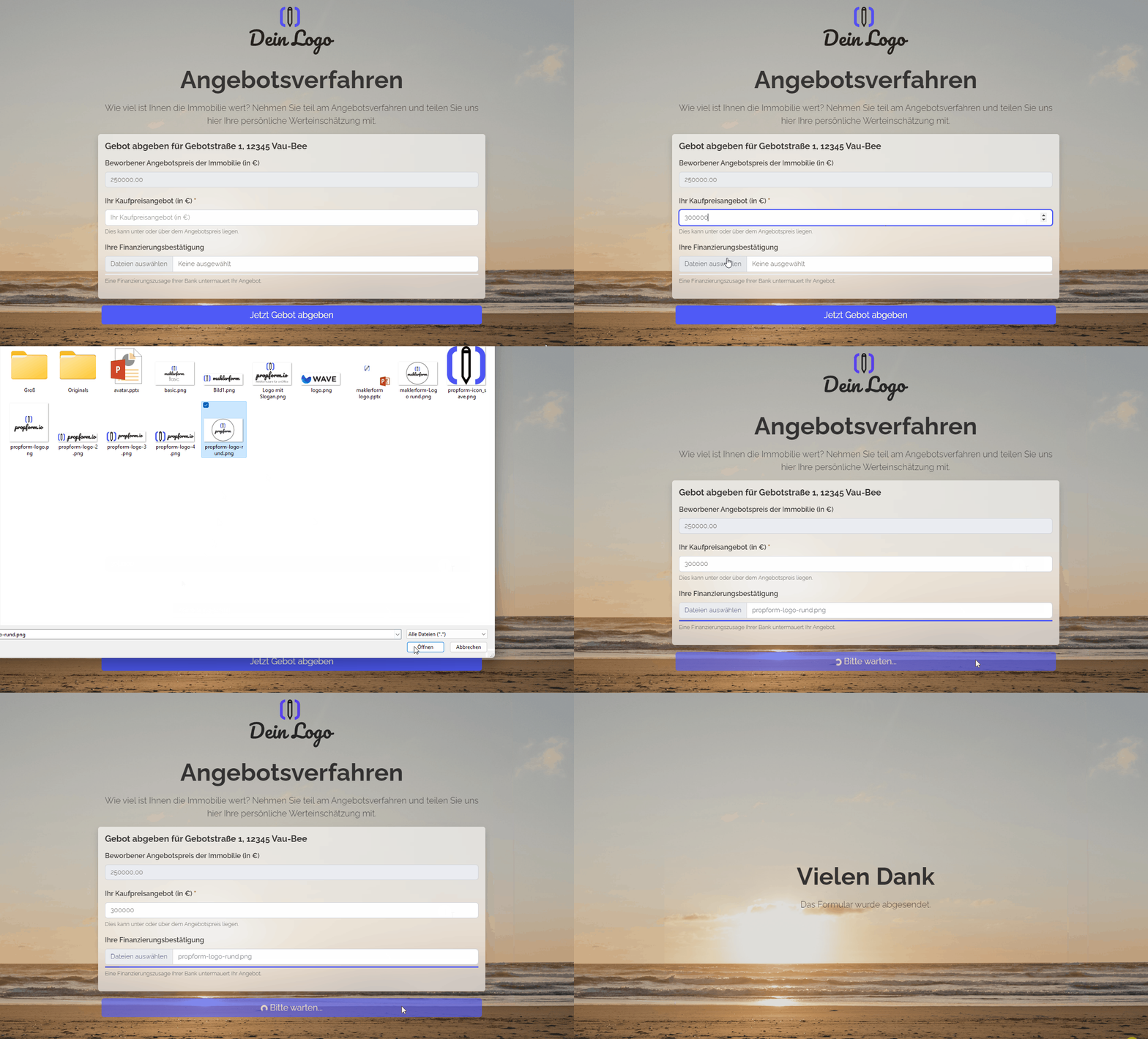
This form can be used to receive purchase price offers from prospective buyers for a property. The purchase price offer entered is recorded in onOffice as a purchase price offer under the tab "Prospective buyers" -> "Manual assignment". In addition, an activity is automatically created with the offered price.
Using the URL parameters "address[ID]" and "estate[Id]" in the form link ("https://example-en.propform.io/angebotsverfahren?address[ID]=_Uuidaddress&estate[Id]=_Uuidestate"), an existing address and property record from onOffice is loaded into the form.
Instructions
- Copy the form from the template overview and activate it.
- ✅ Done
Optional:
- If necessary, add further fields that are important to you, or delete fields that you do not need.
- In the form settings, customise the written activity and task or deactivate them.
- If one or more emails are to be sent from onOffice after the form is submitted, e.g. to the person filling in the form and/or an internal colleague, configure the emails to be sent in "Form settings" -> "Send emails".
- If necessary, customise the styling, the URL suffix and the title of the form.
- In the "Form Settings" -> "Styling", specify whether you want to display the form as a multi-step form or as a one-pager.
Notes
- Bids are received via the "Purchase Price Offer" activity field and are recorded in the "Prospective Buyers" -> "Manual Assignment" tab. An activity is also created.
- The heading in the form is composed of onOffice macros: "Submit purchase price offer for _street _house number, _postcode _town"
- The file upload field stores uploaded files in the address and also links the files to the activity.
Application
- The form is designed to be sent to potential interested parties who are already created in your onOffice version and to be used to bid on a property that also already exists in your onOffice system.
- To do this, copy the third link from the top in "Form Settings" -> "Edit Property & Address" and paste it into a new email. The link looks similar to this: ("https://deinname.propform.io/deineformularurl?address[ID]=_Uuidaddress&estate[Id]=_Uuidestate")
- Link the relevant property to the email and send the email to all interested parties as "Separate Recipients".
Advanced variation
- A useful addition would be a message, reason or free-text field that the customer can fill in. This could be achieved either via an additional address field or by adding the comments field from the Activity module. The message would then be written in the activity.
- Under "Form settings" -> "Further settings" -> "Expiry date required", you can set the form to be accessible to link visitors only until a specific date. If you tick this box, the link must be supplemented with the URL parameter "exp=YYYY-MM-DD hh:mm:ss". The date is the time until which the form is accessible.