Explanation
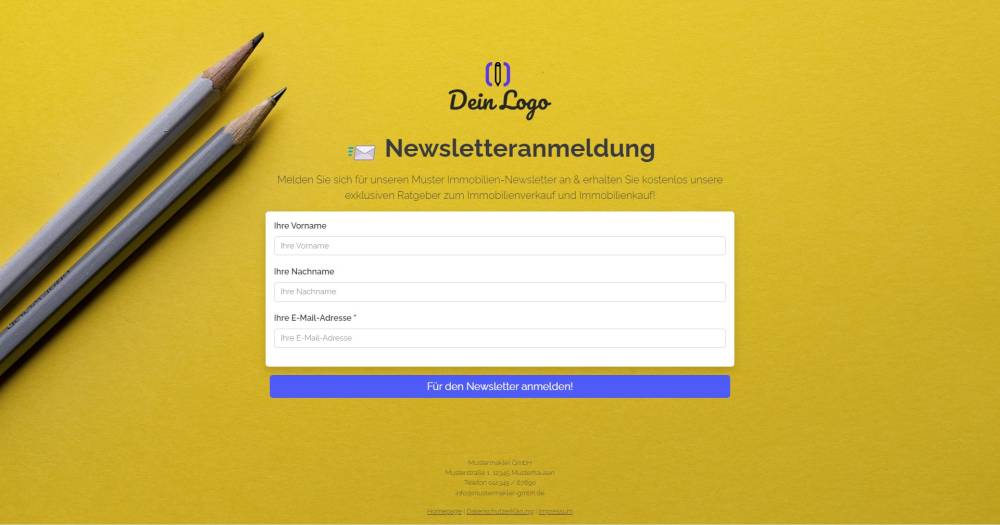
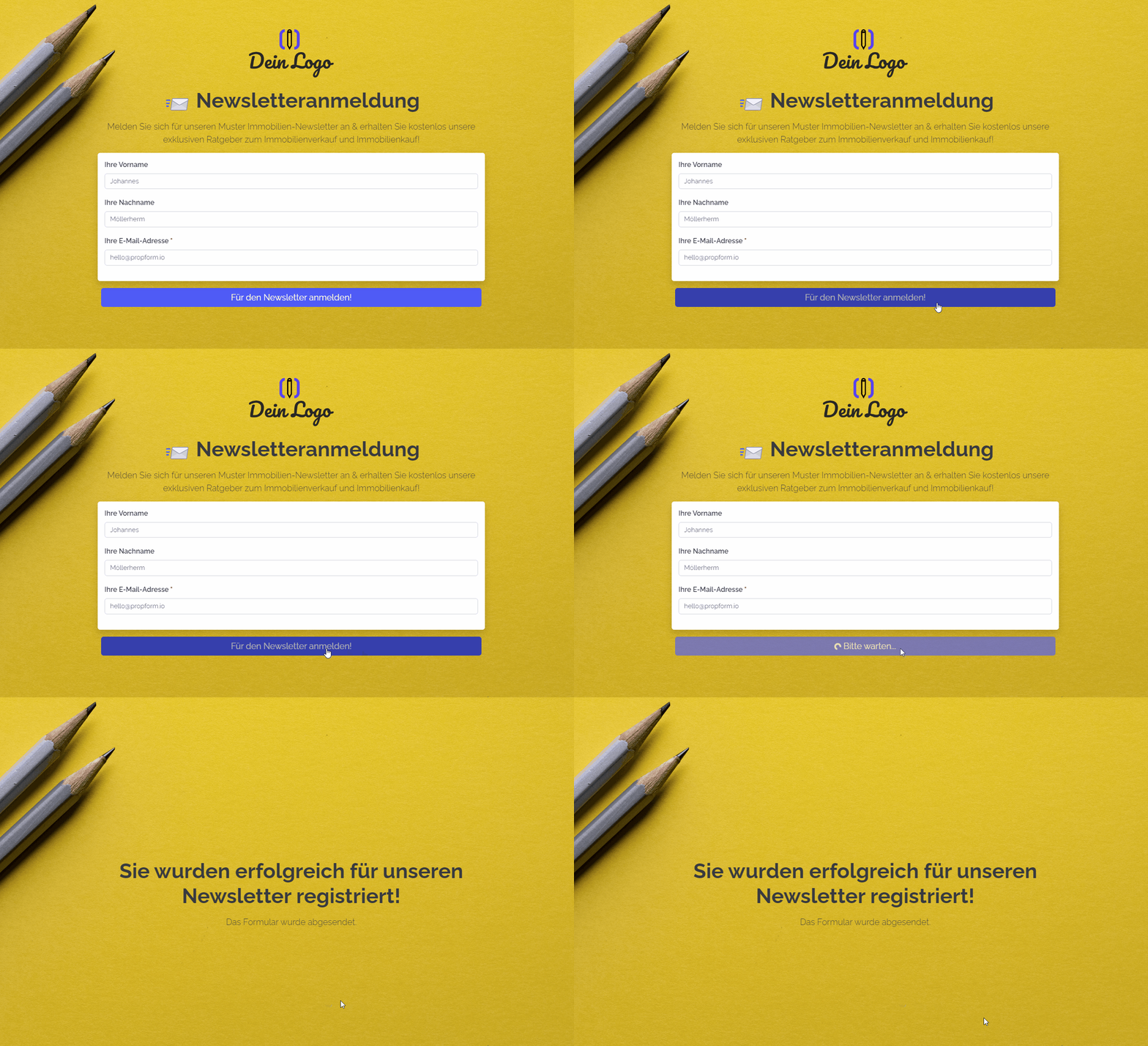
You can use this form to collect new newsletter subscriptions.
Instructions
- Copy the form and activate it.
- ✅ Done
Optional:
- If necessary, add any additional fields that are important to you, or delete fields you don’t need.
- In the form settings, customise the written activity and task or deactivate them.
- If one or more emails are to be sent from onOffice after the form is submitted, e.g. to the form submitter and/or an internal colleague, configure the emails to be sent in "Form settings" -> "Send emails".
- If necessary, customise the styling, the URL suffix and the title of the form.
- In the "Form Settings" -> "Styling", specify whether you want to display the form as a multi-step form or as a one-pager.
Notes
- In addition to the First Name, Last Name and Email fields, the form contains the "newsletter_active" field, which is, however, hidden and has the field key "3" (= "Double opt-in pending") stored as a "Forced value".
- Under "Form Settings" -> "Additional Settings", the duplicate check is enabled, so that if the email address already exists, the existing address record is used.
Usage
- To edit an existing record using the form, the UUID of the address record must be appended to the form link as a URL parameter.
- Alternative 1: Send the edit link by email
- To do this, copy the second link from the top under "Form settings" -> "Edit property & address" and paste it into a new email. The link looks similar to this: ("https://deinname.propform.io/deineformularurl?address[ID]=_Uuidaddress")
- Send an email linked to the address in question.
- Alternative 2: Store the form link in the onOffice interface as a link field with a formula
- In the onOffice administration, create a field of type "Link" and enter the first formula from "Form Settings" -> "Edit Property & Address" as the formula in the field. The formula looks similar to this: ="https://deinname.propform.io/deineformularurl?address[ID]="&[uuid]