All posts
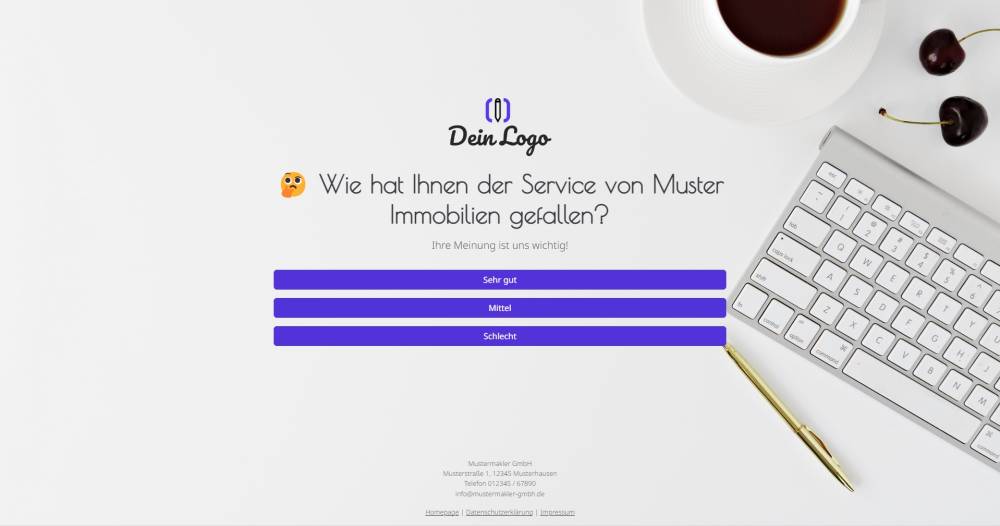
Sample form: Requesting a customer review
This form template allows you to collect customer reviews and track them in onOffice.
Explanation
This form template can be used to collect customer reviews. The reviews are saved as an activity in the address record in onOffice.
The URL parameter "address[ID]" in the form link ("https://example-en.propform.io/kundenbewertung?address[ID]=_Uuidaddress") loads an existing address record from onOffice into the form.
Clicking one of the buttons creates an activity in onOffice that documents the review submitted by the customer.
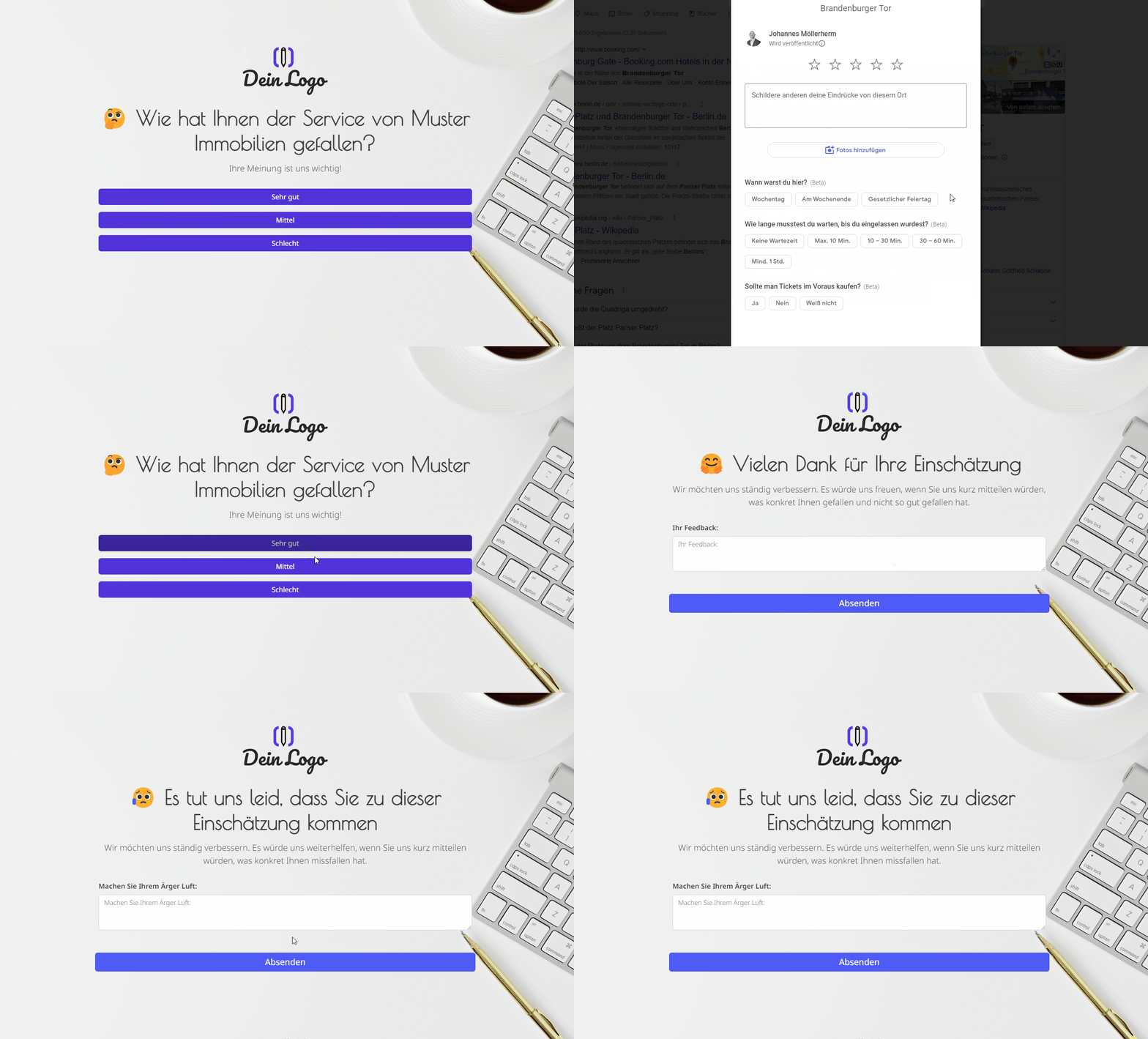
This form actually consists of 6 forms. Behind each of the buttons is another form set to "Auto-Submit", which writes the activity and then redirects directly to another form for feedback, complaints or a Google review.
Instructions
- Copy the template set and activate all forms.
- In form 2/6, enter the link to your Google profile as the thank-you page link.
- Check the links in Form 1/6:
- Form 2/6 should be linked to the "Very good" button
- Form 3/6 should be linked to the "Average" button
- Form 4/6 should be linked to the "Poor" button
- Check the thank-you page links in forms 2/6, 3/6 and 4/6:
- Form 2/6 should link to your Google profile as the thank-you page
- 3/6 should link to form 5/6 (Submit feedback) as the thank-you page
- 4/6 should link to form 6/6 (Submit a complaint) as the thank-you page
- ✅ Done
Optional:
- If necessary, add further fields that are important to you, or delete fields you don’t need.
- In the form settings, customise the written activity and task or deactivate them.
- If one or more emails are to be sent from onOffice after the form is submitted, e.g. to the form submitter and/or an internal colleague, configure the emails to be sent in "Form settings" -> "Send emails".
- If necessary, customise the styling, the URL suffix and the title of the form.
- In the "Form Settings" -> "Styling", specify whether you want to display the form as a multi-step form or as a one-pager.
Notes
- The ‘Append UUIDs to links’ function transfers the initially loaded address record from one form to the next.
- Forms 2, 3 and 4 are set to "Form Settings" -> "Additional Settings" -> "Automatically submit form on submission and redirect to thank you page". This means that the activities are recorded when one of the buttons is clicked.
- The free-text field in forms 5 and 6 is actually the comments field from the Activity module. The label displayed for the field has been changed in the field settings under "Label" to, for example, "Your feedback:". This ensures that the message typed in is saved in the activity.
Application
- The form is designed to be sent to addresses that are already created in your onOffice version.
- To do this, copy the second link from the top in Form 1/6 from "Form Settings" -> "Edit Property & Address" and paste it into an email. The link looks similar to this: ("https://deinname.propform.io/kundenbewertung?address[ID]=_Uuidaddress")
- Send the email to addresses from your onOffice database.
Advanced customisations
- Instead of linking to an overview form, forms 2, 3 and 4 could also be included directly in the email as links. This would allow the customer to click on their rating directly within the email.
- It would also be useful to create a custom single-select field in the "Addresses" module with the key values "good", "average" and "poor". This field could then be added to forms 2, 3 and 4, and under "Further field settings" -> "Forced values", the field could be set to "good", "average" and "poor" respectively. This would not only create an activity but also save a field in onOffice with the rating, allowing you to filter by this and analyse it using the statistics module.