All posts
Sample form: Property valuation calculator/lead form
This sample form can be used to calculate the value of a property in onOffice.

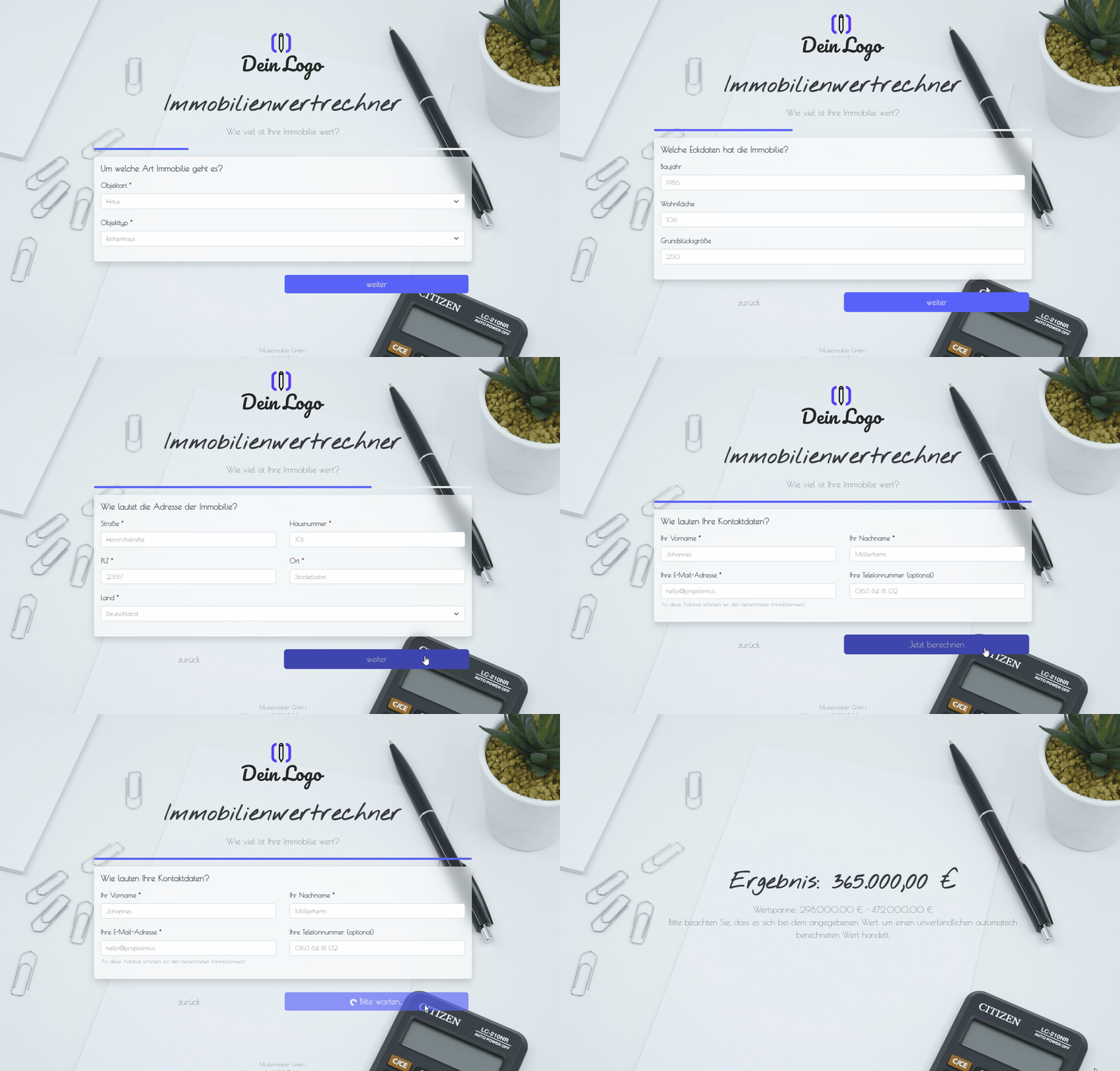
Explanation
This sample form can be used to calculate the value of a property in onOffice. The result is displayed on the thank-you page.
The form consists of various property and address fields. The selection of property types and categories is restricted to those values that work with the property valuation feature in onOffice.
Instructions
- Copy the form from the template overview and activate it.
- Ensure that the Marketplace service "Sprengnetter GmbH" is activated in your version of onOffice. The Sprengnetter valuation is free of charge in onOffice.
- Activate the Sprengnetter fields (MP_sprengnetterpreis, MP_sprengnettermin, MP_sprengnettermax and MP_sprengnetterscore) in your onOffice administration under "Extras"->"Settings"->"Administration"->"Input fields"->Module: "Property"->Category: "Prices".
- ✅ Done
Optional:
- If necessary, add further fields that are important to you, or delete fields you do not need.
- In the form settings, customise the written activity and task or deactivate them.
- If one or more emails are to be sent from onOffice after the form is submitted, e.g. to the form submitter and/or an internal colleague, configure the emails to be sent in "Form Settings" -> "Send Emails".
- If necessary, customise the styling, the URL suffix and the title of the form.
- In the "Form Settings" -> "Styling", specify whether you want to display the form as a multi-step form or as a one-pager.
Notes
- The ‘Property Type’ and ‘Property Category’ fields are restricted under ‘Additional Field Settings’ -> ‘Allowed Values’ to the field values that work with the Sprengnetter calculation.
- Various fields in the form are defined as mandatory fields under "Further Field Settings" -> "Mandatory Field". The fields "Year of Construction", "Living Area" and "Plot Area" are not mandatory fields, as they may not be required depending on the selected property type (e.g. plot of land). You can read exactly which fields are required for the Sprengnetter calculation here in the onOffice Help.
- When entering the property address, the country is also requested, as the Sprengnetter calculation requires a country specification in the onOffice data record. The Country field is preset to "DEU" under "Further field settings" -> "Default value". You can also hide the field under "Further field settings" -> "Hide field".
- To ensure the Sprengnetter calculation is triggered immediately after the form is submitted, the checkbox "Execute Marketplace webhooks after form completion" is ticked for the "Property" module under "Form settings" -> "Further settings".
- Under "Form Settings" -> "Submit & Thank You Page", the thank you page heading is set to "Result: _MP_sprengnetterpreis" and the thank you page text to "Value range: _MP_sprengnettermin - _MP_sprengnettermax". The values are therefore displayed on the thank you page using onOffice macros.
Advanced variation
Instead of displaying the result on the thank-you page, you can also create another form to which you link as the thank-you page and in which the Sprengnetter fields are displayed.
- Create a new additional form and activate it.
- Add the Sprengnetter fields (MP_sprengnetterpreis, MP_sprengnettermin, MP_sprengnettermax and MP_sprengnetterscore) to this new form.
- Set the Sprengnetter fields to ‘Disabled’ under ‘Further field settings’ -> ‘Disable field’ so that they are displayed in grey.
- If necessary, hide the submit button under "Form settings" -> "Submit & Thank you page". Alternatively, you can leave the button visible if you want the form submitter to fill in further fields.
- Insert the link to your new form into your property value calculator form as the thank-you page under "Form settings" -> "Submit & Thank-you page". "Append UUID as URL parameter" should be enabled for Property and Address.