All posts
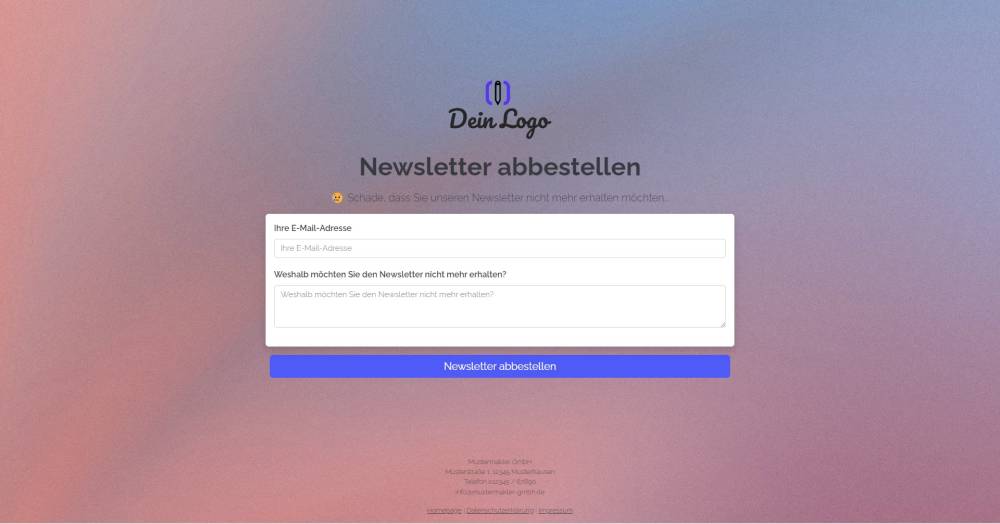
Sample form: Unsubscribe from the newsletter
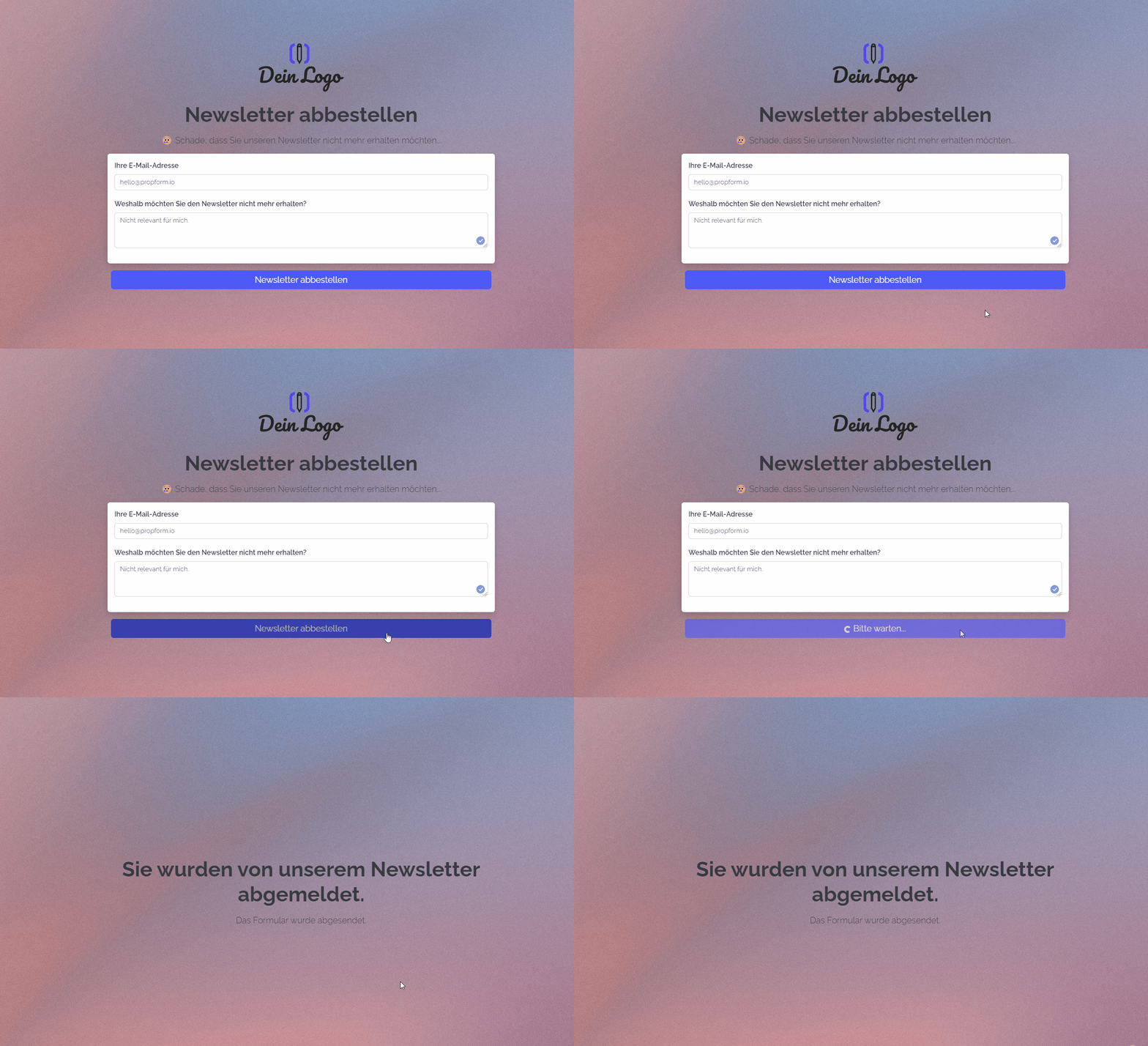
Use this form to allow customers to unsubscribe from your newsletter.
Explanation
You can use this form to collect new newsletter subscriptions.
Instructions
- Copy the form and activate it.
- ✅ Done
Optional:
- If necessary, add any additional fields that are important to you, or delete fields you don’t need.
- In the form settings, customise the written activity and task or deactivate them.
- If one or more emails are to be sent from onOffice after the form is submitted, e.g. to the person filling in the form and/or an internal colleague, configure the emails to be sent in "Form settings" -> "Send emails".
- If necessary, customise the styling, the URL suffix and the title of the form.
- In the "Form Settings" -> "Styling", specify whether you want to display the form as a multi-step form or as a one-pager.
Notes
- In addition to the Email field, the form contains the "newsletter_active" field, which is, however, hidden and has the field key "0" (= "No") stored as the "Forced value".
- Under "Form Settings" -> "Additional Settings", the duplicate check is enabled, so that if the email address already exists, the first existing address record found is used and set to newsletter_active = no.
- The free-text field “Why do you no longer wish to receive the newsletter?” corresponds to the “Comment” activity field, which is why the text entered here is written to the unsubscribe activity.
- In addition to the activity created by the form, onOffice always creates an additional (system value) activity itself whenever the "newsletter_active" field is changed.
Usage
- To edit an existing record using the form, the UUID of the address record must be appended to the form link as a URL parameter.
- Alternative 1: Send the edit link via email
- To do this, copy the second link from the top under "Form settings" -> "Edit property & address" and paste it into a new email. The link looks similar to this: ("https://deinname.propform.io/deineformularurl?address[ID]=_Uuidaddress")
- Send an email linked to the address in question.
- Alternative 2: Store the form link in the onOffice interface as a link field with a formula
- In the onOffice administration, create a field of type "Link" and enter the first formula from "Form Settings" -> "Edit Property & Address" as the formula in the field. The formula looks similar to this: ="https://deinname.propform.io/deineformularurl?address[ID]="&[uuid]