All posts
Sample form: Land Registry upload
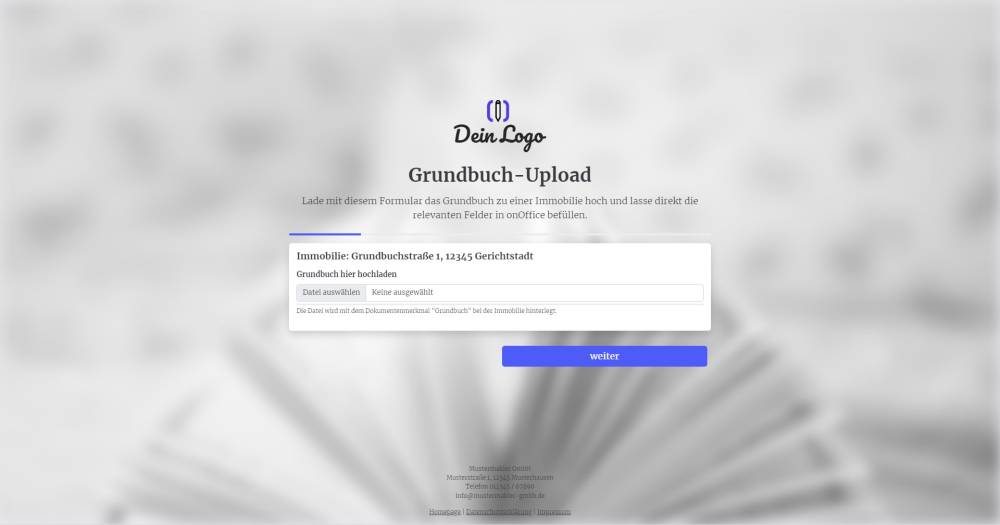
Upload the land registry entry for the property and enter the details directly into the relevant fields in onOffice.
Explanation
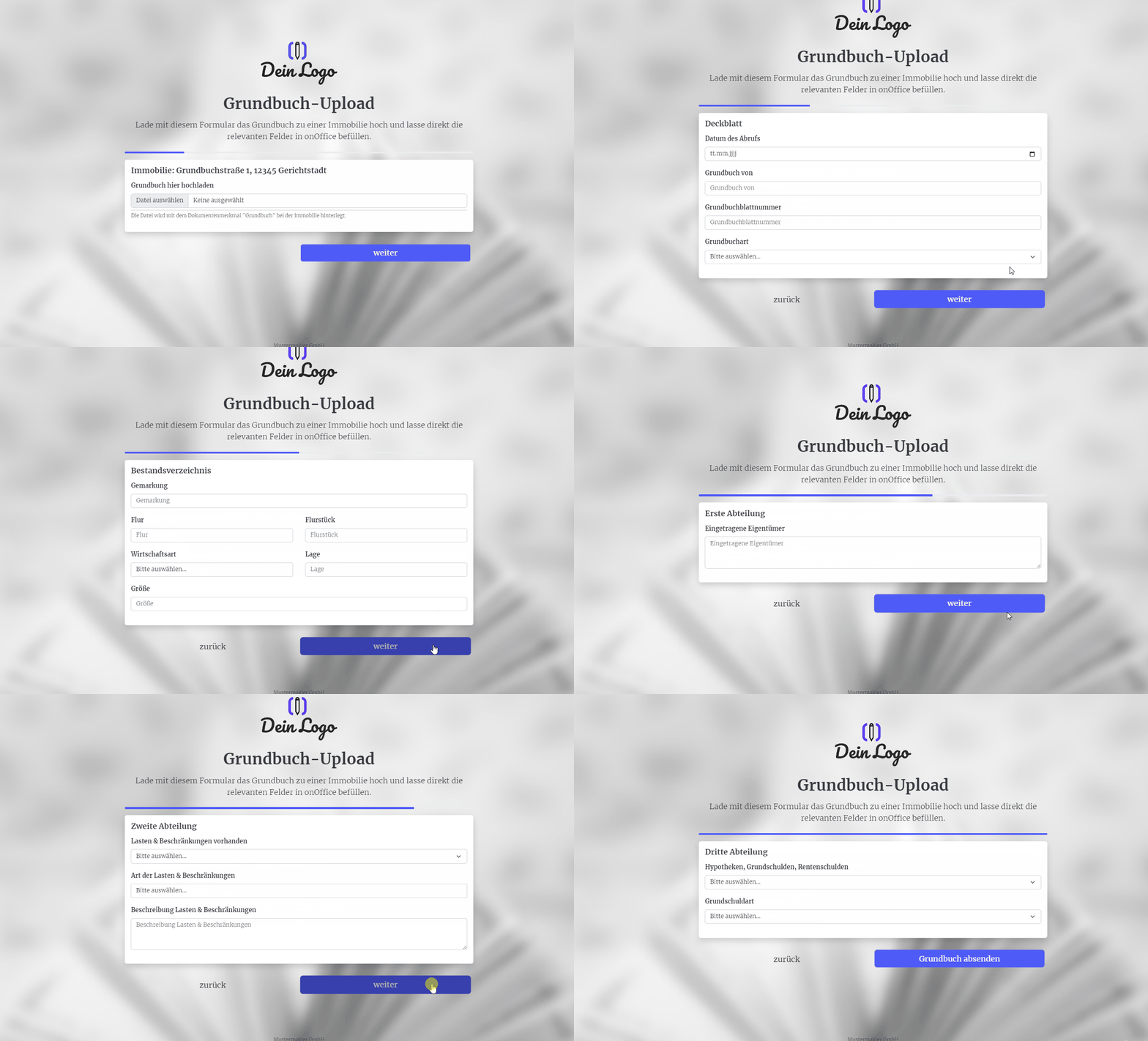
You can use this form to upload the land register for the property to onOffice digitally and, using the same form, retrieve the contents of the land register to save them in onOffice fields within the property. The uploaded file is also immediately assigned the document attribute "Land Register".
Instructions
- Copy the form and activate it.
- Create a document attribute named "Land Register" in your onOffice version. (Administration->Singleselect->Category:Files)
- Create the following property fields in your onOffice administration:
- Date of retrieval (Date)
- Land register of (Text (80 characters))
- Land register type (Single select, see example form for key values)
- Cadastral district (Text (80 characters))
- Parcel (Text (80 characters))
- Parcel (Text (80 characters))
- Type of property (single select; see example form for key values)
- Location (Text (80 characters))
- Size (integer)
- Co-ownership share (MEA)
- Separate ownership & partition plan numbers (Comment)
- Registered owners (Comment)
- Encumbrances & restrictions present (single select: yes, no)
- Type of encumbrances & restrictions (single select; see example form for key values)
- Description of encumbrances & restrictions (Comment)
- Mortgages, land charges, annuity charges (single select: entries exist, no entries exist)
- Type of land charge (single select: unregistered land charge, registered land charge)
- Replace the custom fields from the template with the field names from your onOffice version.
- ✅ Done
Notes
- The form contains a relatively large number of custom fields.
- You need a document attribute named "Land Registry"
- You can also use the onOffice standard fields ‘parcel’, ‘parcel number’ and ‘cadastral district’ from the ‘Geographical Information’ category instead of creating new custom fields.
Usage
- To edit an existing record using the form, the UUID of the property record must be appended to the form link as a URL parameter.
- Alternative 1: Send the edit link by email
- To do this, copy the first link from the top under "Form Settings" -> "Edit Property & Address" and paste it into a new email. The link looks similar to this: ("https://deinname.propform.io/deineformularurl?estate[Id]=_Uuidestate")
- Send an email linked to the property in question.
- Alternative 2: Store the form link in the onOffice form as a link field with a formula
- In the onOffice administration, create a field of type "Link" and enter the first formula from "Form Settings" -> "Edit Property & Address" as the formula in the field. The formula looks similar to this: ="https://deinname.propform.io/deineformularurl?estate[Id]="&[uuid]